A LinkedIn photo crop
that keeps you in frame.
A portrait can look balanced as a rectangle and feel cramped inside a small circle. Keep an original, make a separate crop and check the actual LinkedIn preview before saving.
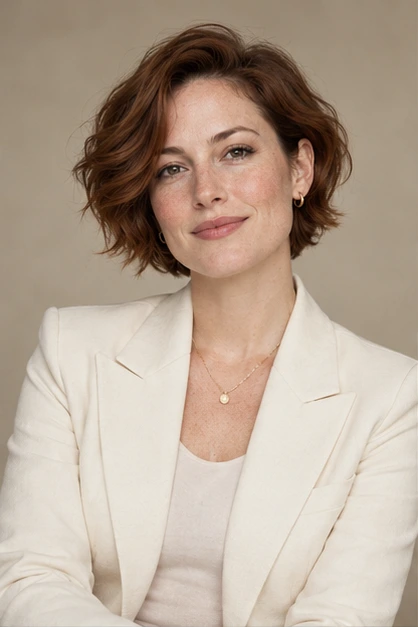
Morrow Studio · AI-assisted preparation guide · Updated October 24, 2026. Style suggestions are illustrative, not professional or hiring requirements.
Compare a square file with a circular preview
The corners of a square image disappear when a site displays it inside a circle. Keep important parts of the portrait away from those corners. The illustrations below reuse the same public fictional AI sample; they demonstrate a display mask, not an image editing tool or a customer result.
Illustrative crop only. The actual crop and display size depend on your uploaded image and the current LinkedIn editor.
Work from the original, then adjust the frame
- Keep the downloaded original. Make a separate copy for your profile so you can change the crop later without repeatedly saving over the source.
- Choose a portrait with space around the head and shoulders. If the top of the hair is already outside the original frame, cropping cannot recover it. Try a wider original instead.
- Move the frame so the face is easy to recognize. Check the top of the hair, ears, chin, collar and any accessories near the edge.
- Resize proportionally. Do not stretch a narrow portrait sideways to fill a square; crop a suitable area instead.
- Check both a larger preview and a small avatar view. If the face becomes hard to recognize, compare a closer crop while preserving comfortable space around the head.
Check the image in LinkedIn before saving
LinkedIn’s photo editor lets you crop, reposition and adjust the size of an uploaded profile photo. Use the preview offered by the current editor, then check the saved image on your profile. Platform controls and upload requirements can change; follow LinkedIn’s current help if an upload is rejected.
LinkedIn Help: add or edit your profile photo
This guide does not prescribe a universal face percentage, promise acceptance of every generated image or certify the current upload limits. Use a recent, recognizable image and follow the platform’s rules.
Troubleshoot the crop before replacing the photo
- Hair or chin cut off: zoom out if the original contains more room; otherwise choose another original.
- Face looks distorted: return to the original and resize proportionally rather than stretching the image.
- Face looks soft: use the original download rather than a screenshot of a thumbnail; a tighter crop cannot create missing detail.
- A logo or collar is clipped: decide whether that detail belongs in the avatar. If exact clothing or a uniform must remain visible, use a wider portrait that genuinely contains it.
- The generated face does not look like you: do not try to solve a likeness problem by cropping. Review another result or choose an appropriate real photograph.
Use separate crops for different destinations
A small LinkedIn avatar, a rectangular company biography and a resume photo box need different framing. Keep one original and export a copy for each destination. If an application specifies an unaltered camera photo or an identity document image, use a qualifying real photograph instead of a generated portrait.