AI resume photos.
A clear introduction.
Generate a professional photo for a CV, application or portfolio that accepts one. Start by checking the photo instructions; a headshot is useful only when it belongs in the application.
Upload 2–8 photos of the same adult. Pay, then confirm processing. AI facial details can vary.
Morrow Studio · AI-assisted product guide based on our current package and upload rules.
Should your resume include a photo?
Follow the employer, recruiter or application portal’s instructions first. Some applications request a portrait; others ask you to leave it out. An AI resume photo generator cannot tell you which convention applies to a particular job, and a polished image does not guarantee an interview.
- If a photo is requested and generated images are accepted, use a current-looking, recognizable portrait that matches the requested format.
- If photos are discouraged or the system has no photo field, keep the image out of the document. You can consider it separately for a personal website or professional profile.
- For passports, visas, identity verification or any application requiring an unaltered camera photo, follow the receiving organization’s rules and use an appropriate real photograph.
Choose a CV headshot that supports the document
A resume is usually viewed with text beside the picture. Choose a simple background and an outfit consistent with the role, rather than a busy scene that becomes distracting when reduced. Leave some space around your hair and shoulders so a rectangular crop does not cut too tightly.
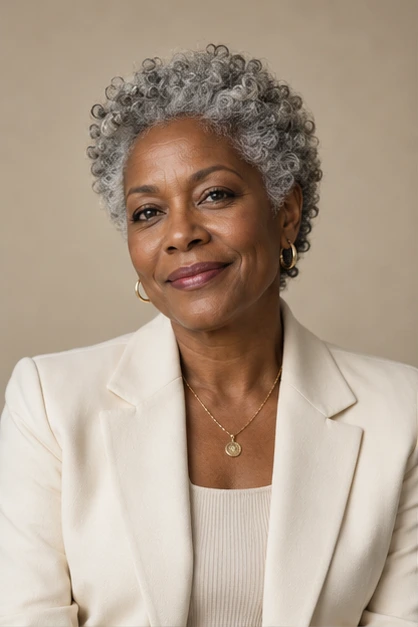
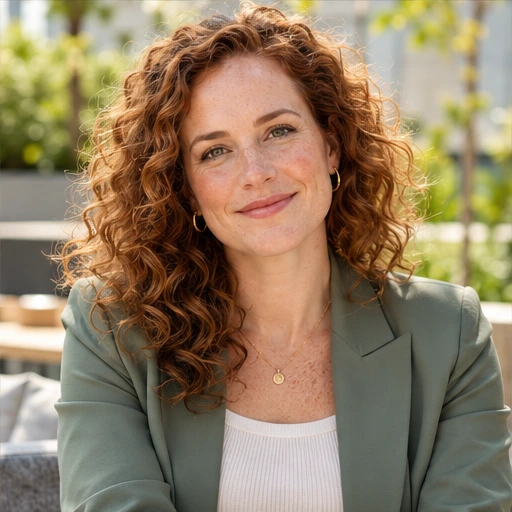
These images show different fictional people and style directions. They are not transformations of one customer. Compare the complete style collection before choosing up to two looks for your own headshot package.
Browse professional headshot stylesCreate resume headshots from your own photos
- Prepare 2–8 recent, clear photos of the same adult. Front and slight left/right angles are a useful starting point; JPEG, PNG and WebP are accepted up to 12 MB per image.
- Choose up to two professional looks, review the one-time 12-photo package, and save your unpaid order with private reference photos.
- After payment is verified, confirm photo processing to start generation. Review the delivered images before downloading the versions you want to use.
Saved references expire after 7 days. Confirmation sends reference boards and prompts to the configured processor; deleting our stored files does not establish deletion of provider copies.
Check the final photo inside the actual resume
- Compare the result with your recent appearance. Check facial shape, glasses, eyes, teeth, ears and clothing edges for generated details that do not belong.
- Keep the downloaded original, and make a separate crop for the document. Avoid stretching the face to fit a box.
- Export the complete resume and inspect it at the size the reviewer will see. Check that the photo stays legible and does not push important text onto another page.
Morrow generates portrait images; it does not write your CV, certify an application photo or promise compatibility with every recruitment system. If exact facial detail or a specified camera photograph is essential, choose a suitable real photoshoot.
Choose a photo for the right setting
Check the application’s requirements first. Then compare looks, the current package and photo handling before ordering.